
How to Install IPTV on Amazon Fire Stick: The Definitive Guide
Complete step-by-step masterclass on installing IPTV on Amazon Fire Stick and Fire TV 4K Max. Enable unknown sources, install Downloader, and configure playlists.
The Amazon Fire TV Stick is universally recognized as the world's most versatile television streaming peripheral. Packed with hardware 4K video decoders, Dolby Atmos audio passthrough, and an intuitive voice remote, it transforms any HDMI-equipped display into an entertainment center.
However, because Amazon's proprietary Appstore limits direct distribution of certain third-party media players, new cord-cutters frequently wonder how to install and configure IPTV correctly. In this complete, step-by-step masterclass, our senior streaming architects guide you through configuring your Firestick with Flix IPTV in less than five minutes.
Phase 1: Preparing Your Firestick for App Sideloading
Before installing dedicated player software like HOT Player or IPTV Smarters Pro, you must enable permission for your Firestick to install certified Android packages (APKs):
- Power on your Amazon Firestick and navigate to Settings (the gear icon) on the extreme right of the main navigation ribbon.
- Scroll down and select My Fire TV (or Device & Software on certain software revisions).
- Click on Developer Options.
Note for Fire OS 7 & 8: If Developer Options is hidden, click About, highlight Fire TV Stick, and press the center remote button 7 times rapidly until a prompt says "No need, you are already a developer." - Inside Developer Options, set Apps from Unknown Sources to ON.
Phase 2: Installing the Downloader Utility
With installation permissions unlocked, you need a safe file transfer tool to download the player software directly onto your Fire TV:
- Return to the Firestick Home Screen and select the Find / Search icon.
- Type
Downloaderusing the on-screen keyboard. - Locate the orange Downloader application icon by AFTVnews and click Download / Get.
- Once installed, launch Downloader and click Allow when prompted for storage access permissions.
Phase 3: Downloading & Installing Your IPTV Player
Now, download your preferred media application directly:
- In the URL search box inside Downloader, enter the direct numerical download code or URL for HOT Player or IPTV Smarters Pro.
- Click Go. Downloader will fetch the application package and prompt: "Do you want to install this application?"
- Click Install in the bottom right corner.
- After installation finishes, click Open to launch your media player immediately.
Phase 4: Connecting Your Flix IPTV Account
Upon launching the media player, you will be greeted by a login configuration prompt:
- Select Login with Xtream Codes API (the fastest and most stable configuration protocol).
- Enter any descriptive profile name (e.g.,
Flix IPTV Living Room). - Enter your Username and Password exactly as provided in your Flix IPTV welcome message.
- Input the server URL:
http://stream.flix-iptv.online:8080(or your specific portal address). - Click Add User / Connect.
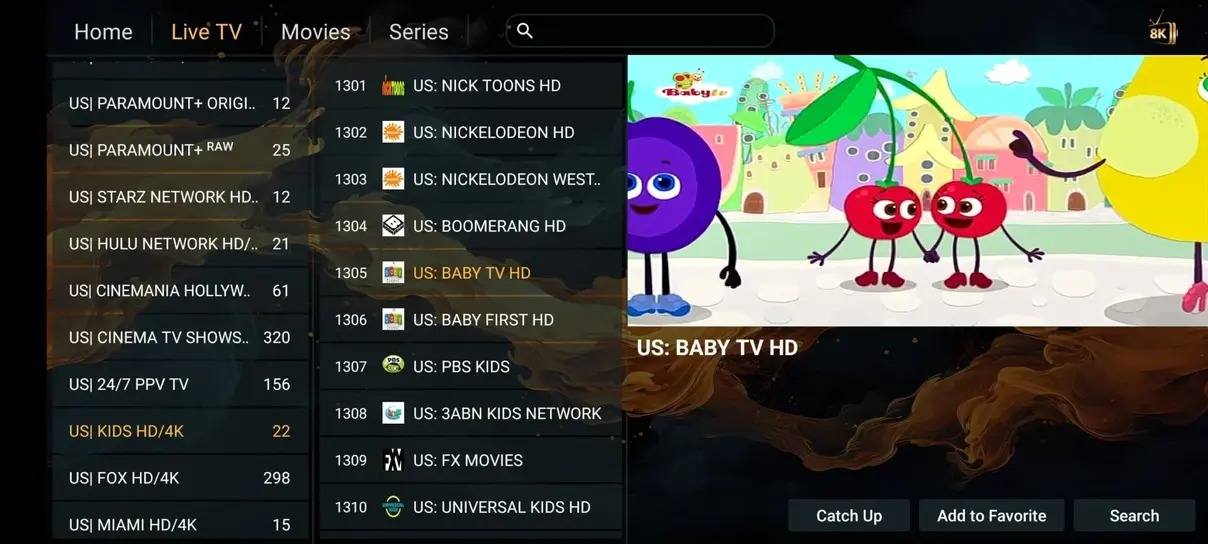
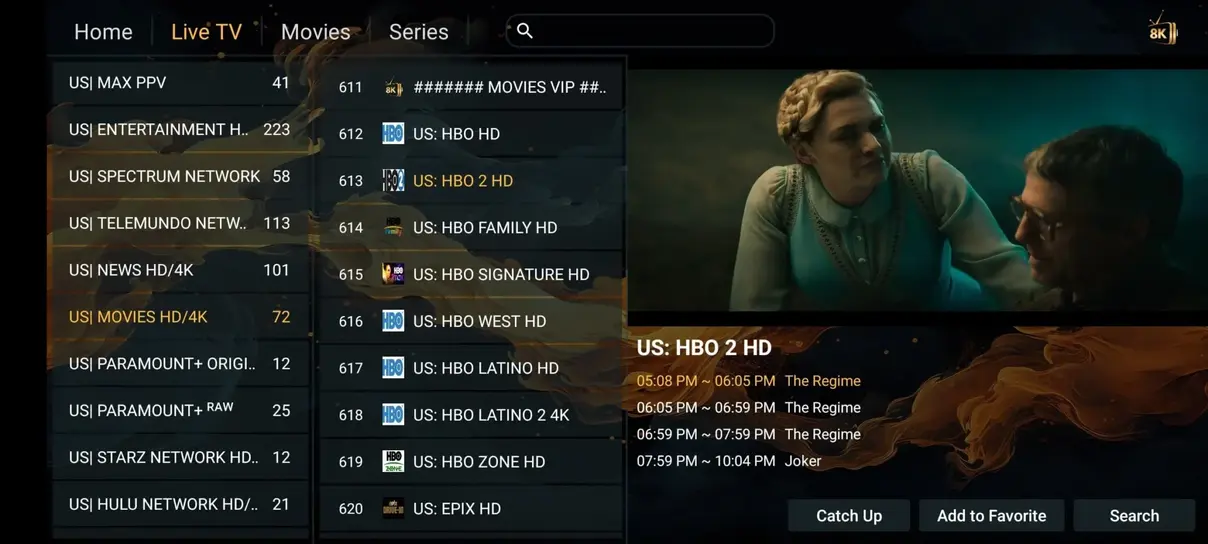
Within 20 to 30 seconds, your media player will synchronize 35,000+ live broadcast stations, 142,000+ movies and series, and full EPG television schedules.
Essential Pro Tips for Optimal Firestick Performance
- Clear App Cache Weekly: Firesticks have limited internal memory. Go to Settings > Applications > Manage Installed Applications and clear the cache of your media player to maintain peak speed.
- Use an HDMI Extender: Plugging the Firestick into the included flexible HDMI extender pulls the device away from the metal chassis of your television, drastically reducing Wi-Fi signal interference.
- Wired Ethernet Adapter: For zero-latency 4K sports streaming, consider the official Amazon Ethernet Adapter to bypass Wi-Fi altogether.
Experience Uncompromised 4K Streaming on Firestick
Join over 243 verified subscribers who rely on Flix IPTV for smooth, zero-buffer television entertainment.
Get Flix IPTV for Firestick → Explore Other Devices →